Monitor Stands Guide: Ergonomic Height, Risers vs Arms and How to Choose
If you work at a screen for hours, the height of your monitor matters more than most people think. A screen that sits too low makes you look down all day. Your neck bends forward, your shoulders round and by the afternoon you feel it. A monitor stand fixes this by lifting the screen to a healthy height. It can also free up desk space and make your setup look tidy.
This article is part of our home office desk guide, where you can compare related options.
A monitor stand is any riser, stand or arm that holds a monitor at a better height or angle. This guide explains how high your screen should be, how far away, what types of stands exist, what to check before buying and how to set up your desk. The ergonomic points come from workplace-health guides and furniture makers, so confirm them if you have a medical need.
How High Should Your Monitor Be?
On a few basics: Top of the screen at or slightly below eye level. This keeps your neck neutral. Some guides put it another way: the top third of the screen should line up with your eyes. Gaze angle. OSHA guidance, quoted by FindLaw, puts the center of the screen about 15 to 20 degrees below horizontal eye level. Another guide says 10 to 20 degrees. Bifocals. If you read through the lower part of your lenses, set the screen lower than eye level so you do not tilt your head back. Standing desks. Your eye level rises when you stand, so the monitor must rise too. Laptops. The screen is usually too low. Use a laptop stand and an external keyboard and mouse.
Set your desk and chair first, sit back in a comfortable posture, and then adjust the screen. One guide suggests measuring your seated eye height above the desk as a starting point.
How Far Away Should It Be?
A common rule is about an arm’s length from your eyes to the screen. Another guide gives a more detailed rule based on text size: a viewing distance of no less than about 150 to 200 times the character height. For most people, arm’s length is a good starting point. If you have to lean forward to read, increase the text size or move closer. If the text is tiny, adjust display scaling.
Types of Monitor Stands
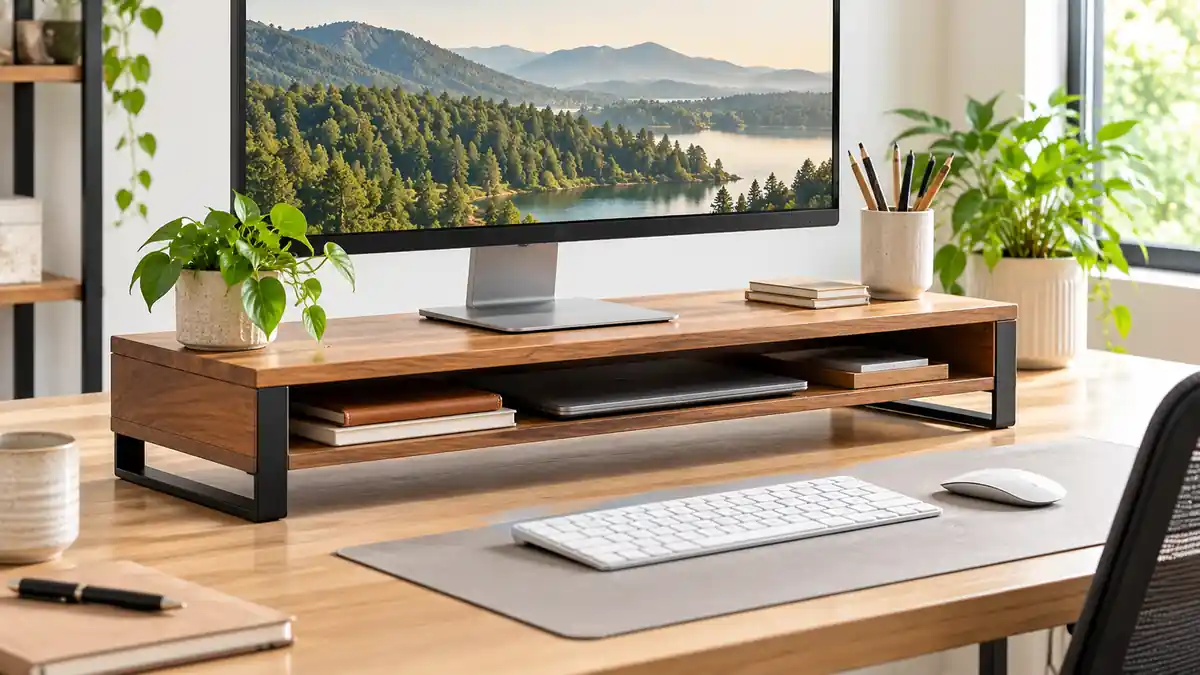
Monitor riser: a platform that lifts your monitor. It is simple and low in cost, and many have storage underneath for a keyboard, notes or a phone. Height may be fixed or have several levels. Adjustable stand: has a base and a post. You can change height, tilt, swivel and sometimes rotate. If your monitor’s own stand only tilts, an adjustable stand or a riser adds height. Monitor arm: clamps to the edge of the desk or bolts through it, and holds the monitor on a movable arm. It gives the most adjustment: height, depth, tilt and rotation. It frees up desk space because the stand base is gone. Laptop stand: raises a laptop to eye level. Pair it with a separate keyboard and mouse. See the small desk guide. Dual or triple monitor stands: for two or three screens on one mount. Wall mount: attaches the monitor to the wall. It is clean but less adjustable.
| Type | Adjustability | Desk space | Cost |
|---|---|---|---|
| Riser | Low | Uses space, offers storage | Low |
| Adjustable stand | Medium | Uses space | Medium |
| Monitor arm | High | Frees space | Medium to high |
| Wall mount | Low | Frees space | Medium |
What to Check Before Buying
Weight and screen size rating: check the maximum weight and screen size. A heavy ultrawide monitor needs a strong stand or arm. VESA mount: VESA is a standard pattern of four screw holes on the back of the monitor, used for mounting. Most arms and wall mounts use it. Check your monitor’s VESA size, such as 75 by 75 or 100 by 100 millimeters, and make sure the stand supports it. If your monitor has no VESA holes, use a riser or a stand with an adapter. Height range: make sure the stand reaches your eye level. Sit and measure the height from your desk to your eye line, then compare with the stand’s range. Desk fit: for arms, check the desk thickness, material and edge. Glass, thin or hollow desks may not work with clamps. Some arms use a grommet mount through a hole. Stability: the stand should hold the monitor steady when you type or touch the desk. Cable management: clips or channels keep cables tidy. Footprint: a big base takes desk room. Check the depth, especially on a narrow desk. Compatibility with multiple monitors: check that the arm can hold both screens, and the weight is within limits.
How to Set Up Your Monitor
- Set your chair height so your feet are flat and your elbows rest at about 90 degrees.
- Sit back in a comfortable position.
- Place the monitor about an arm’s length away, centered in front of you.
- Raise it until the top of the screen is at or slightly below eye level.
- Tilt it back slightly if needed, to reduce glare.
- Position it away from windows so there is no glare on the screen.
- Use two monitors carefully. Put the main monitor directly in front. If both are used equally, center them where they meet.
- Adjust the brightness and text size for comfort.
- Take breaks to rest your eyes. A common suggestion is to look at something far away every 20 minutes.
Add a desk lamp that does not shine directly on the screen. See the small desk and kids desk guides for more setup tips.
Standing Desk Setups
If you use a sit-stand desk, set the monitor height for both positions. A monitor arm with a good height range makes the change easy. A fixed riser may not work in both modes. Check ergonomics guides for standing posture. Note that your elbow height changes too, so adjust the desk and keyboard.
Riser vs Arm: Which to Choose?
Choose a riser if you want a simple, low-cost option, you like extra storage below the screen and you do not want to clamp anything to the desk.
Choose a monitor arm if you want maximum adjustment, you share the desk with others who need different heights, you want more desk space or you use multiple monitors.
If you rent or have a delicate desk, a riser avoids clamping damage.
What mistakes should you avoid?
A few common mistakes are worth avoiding: setting the screen too low (it causes neck strain); buying an arm that does not match the monitor weight; ignoring VESA holes (the stand will not fit); forgetting to adjust when standing; placing the screen near a bright window; putting the monitor too close or too far.
How to Choose a Monitor Stand
Measure your seated eye height. Check your monitor’s weight, size and VESA pattern. Choose a type: riser, adjustable stand or arm. Check the desk for clamp compatibility. Think about extra monitors. Check cable management and footprint. Read reviews for notes on wobble.
Frequently Asked Questions
How high should my monitor be?
The top of the screen at or slightly below eye level.
How far should the monitor be from my eyes?
About an arm’s length is a good start.
Is a monitor riser better than an arm?
Risers are simple. Arms offer more adjustment and free up desk space.
What is VESA?
A standard pattern of mounting holes on the back of a monitor.
Do I need a stand with a laptop?
A laptop stand and an external keyboard help you keep a healthy posture.
Can I use a monitor arm on a glass desk?
Check the arm’s requirements. Many need a solid edge or reinforcement.
What if my monitor has no VESA holes?
Use a riser or a stand with an adapter plate.
Conclusion
A good monitor stand puts your screen at the right height and distance, which helps your neck, shoulders and eyes. Match the weight rating and VESA pattern, pick a riser or an arm to suit your desk and adjust until your posture feels relaxed.
Small changes in screen height can make long work days feel much easier.
Related guides
 Monitor Stand for Desk: How to Choose the Right Height, Size and Weight RatingA monitor stand lifts your screen off the desk so you don t spend the day looking down. The best one holds your…Read more →
 Small Desk for Bedroom: Depth, Width, Floating Desks and ErgonomicsA small bedroom desk can work well if the depth fits your gear. Design guides suggest about 16 inches for a…Read more →
 Chair Mat: Carpet vs Hard Floor, Sizes, Grippers and MaterialsA chair mat protects your floor from rolling office chairs and helps the chair move smoothly. Carpet mats have…Read more →